The P&L is where everything in Fieldfare comes together. Invoices, payments, expenses, and exchange rates all feed into one number: your net profit in your home currency, after fees and FX movements. This is the report your accountant needs when you file taxes.
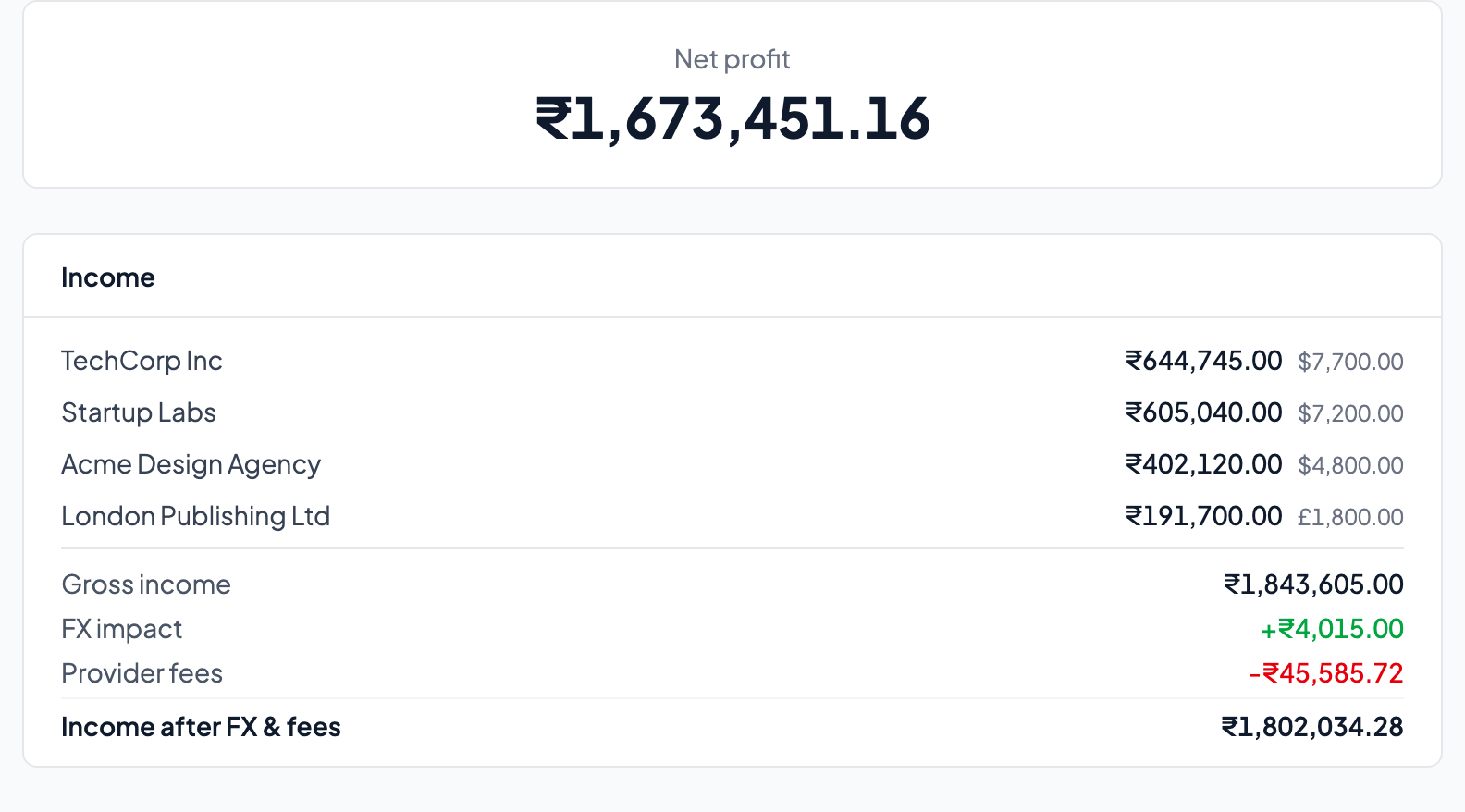
Income
Broken down by client. Each line shows the total invoiced in your home currency equivalent, alongside the original foreign currency amount. Below the per-client lines:
- Gross income — Total invoiced, converted at invoice-date exchange rates.
- FX impact — The sum of all gains and losses from exchange rate movements between invoice dates and payment dates.
- Provider fees — Total estimated fees across all payment providers.
- Income after FX & fees — What actually landed in your bank account. This is the real number.
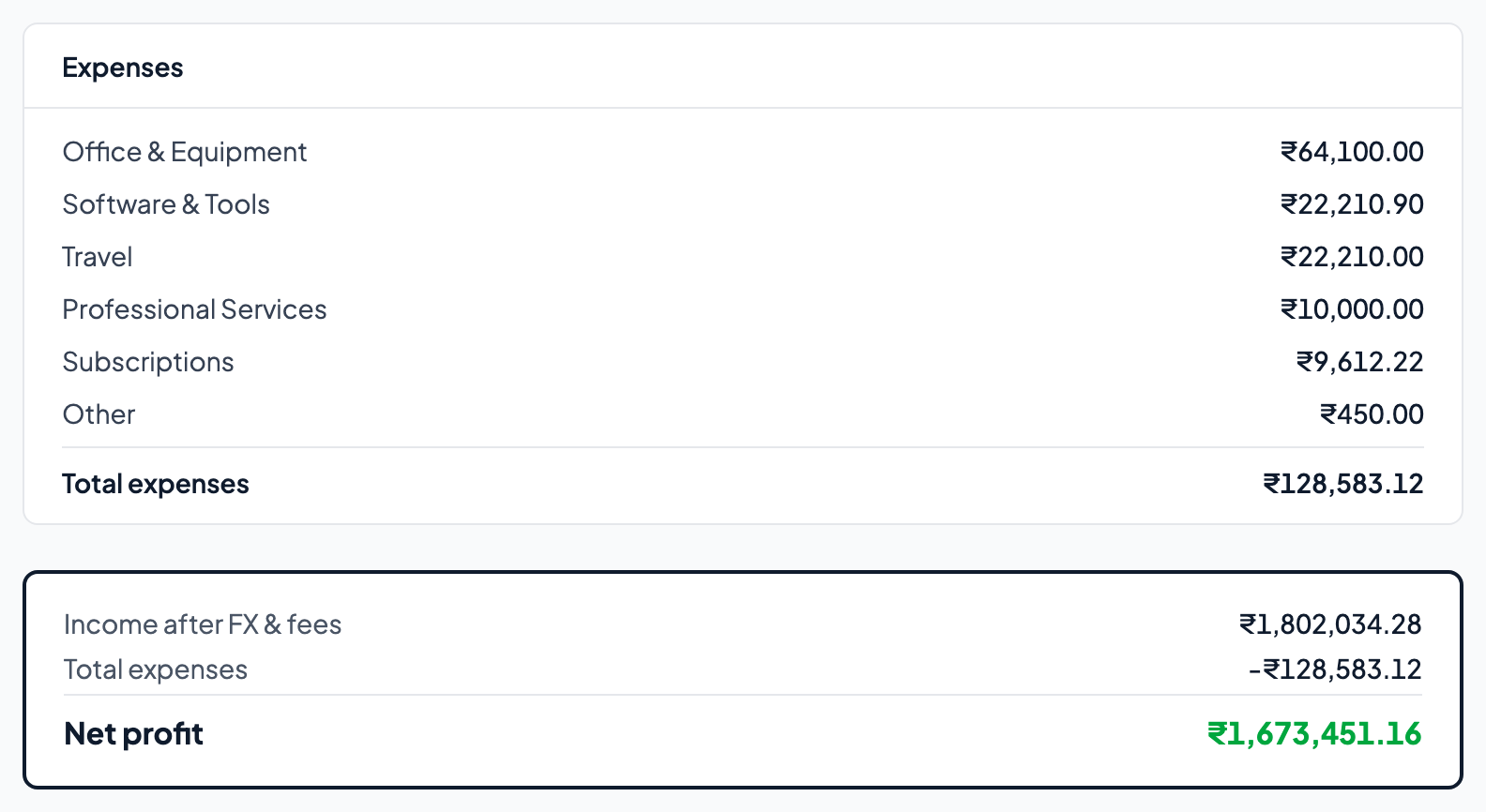
Expenses
Broken down by category. All amounts converted to your home currency at the exchange rate on the date of each expense. The categories you assigned during CSV import or manual entry (Software & Tools, Travel, Professional Services) show up here as line items with running totals.
Net profit
Income after FX & fees, minus total expenses. This is the bottom line: what you actually earned in the period, in the currency you pay your taxes in. No fuzzy approximations, no "the invoice said X but I'm not sure what I received." Just the real number.
Period selector
Switch between This Month, This Quarter, This Year, or set a custom date range. The P&L recalculates for the selected period. Use "This Year" for annual tax prep, "This Quarter" for GST filings or quarterly reviews.
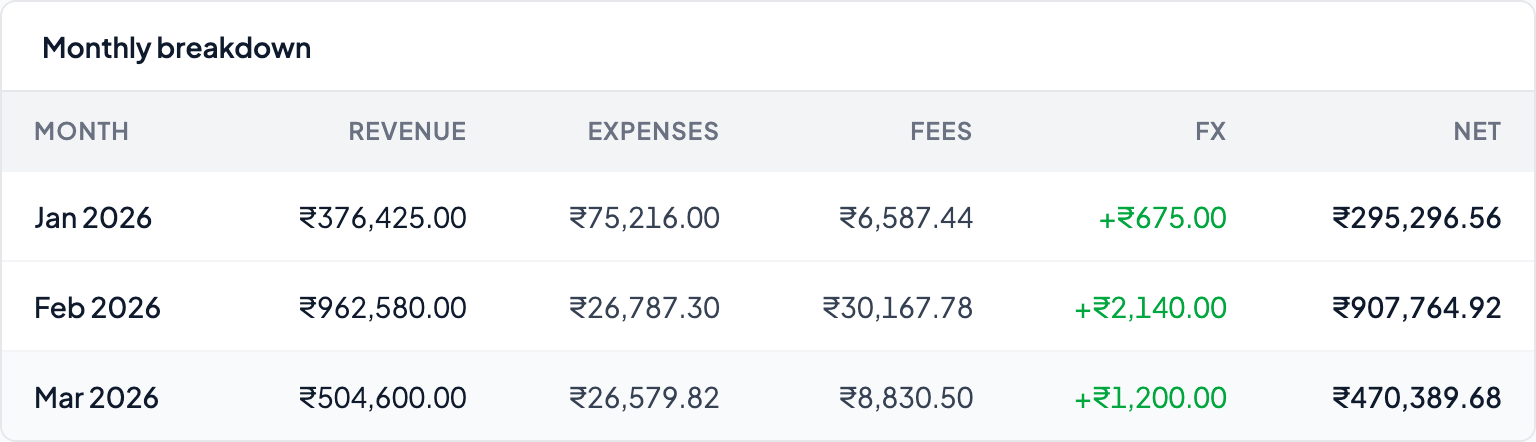
Monthly breakdown
The table at the bottom shows revenue, expenses, fees, FX impact, and net profit for each month in the selected period. This is where you spot trends: seasonal dips in client work, months where FX worked in your favour, or months where provider fees were unusually high.
CSV export
Download the P&L as a CSV for your accountant or tax filing. The export includes the full detail: per-client income, per-category expenses, FX impact, and monthly figures. Hand it to your CA or tax advisor and save yourself the spreadsheet work.
You can also export your raw invoices and expenses from Settings as CSV files — useful for migrating to another tool, backing up, or giving your accountant the source data rather than the summary.