Invoicing is the core of Fieldfare. Create an invoice in your client's currency, preview it as a PDF, and track it from draft through to paid, with full visibility into what you actually received after FX and fees.
Creating an invoice
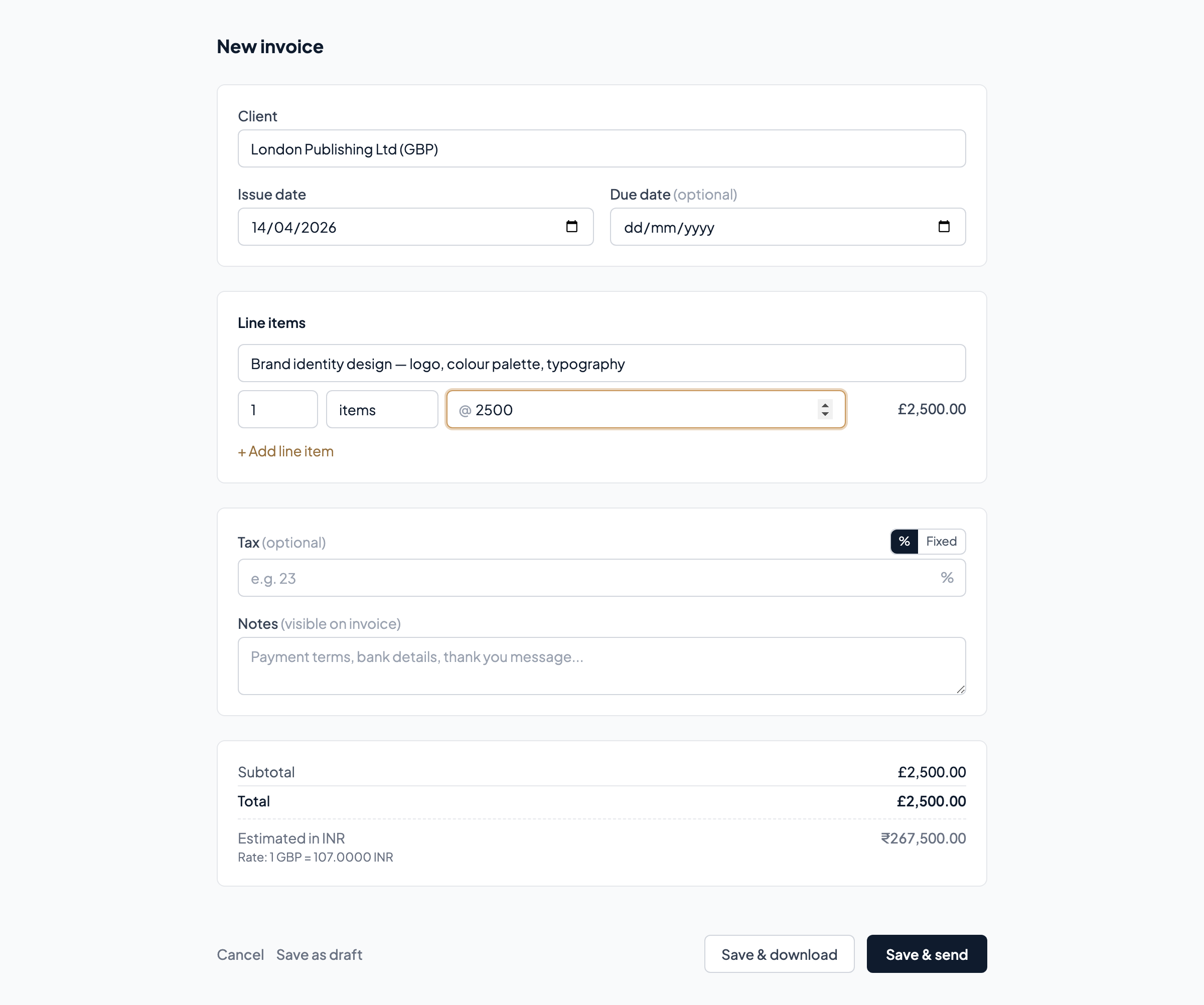
Go to Invoices and click New invoice. Select a client and the currency is set automatically from the client record (USD for your American clients, GBP for British ones, and so on).
Add line items: each one is a description and an amount. If you bill by the hour or by the word, you can set a quantity and unit price, but for most freelancers a simple description and total per line is all you need. Add notes at the bottom for payment instructions or project references.
The due date calculates automatically from the client's payment terms. You can override it if needed.
PDF templates
Before sending, preview the PDF. Fieldfare has six invoice templates: Minimalist, Bold, Craft, Bright, Formal, and Mono. Each one is designed to look professional and distinctive, not like a generic spreadsheet printout. Pick the template that matches your brand.
The PDF includes your business details, your logo (if you've uploaded one), the client's address, line items, totals, tax (if applicable), and any notes you've added. Set a default template in Settings so you don't have to choose every time.
Invoice detail
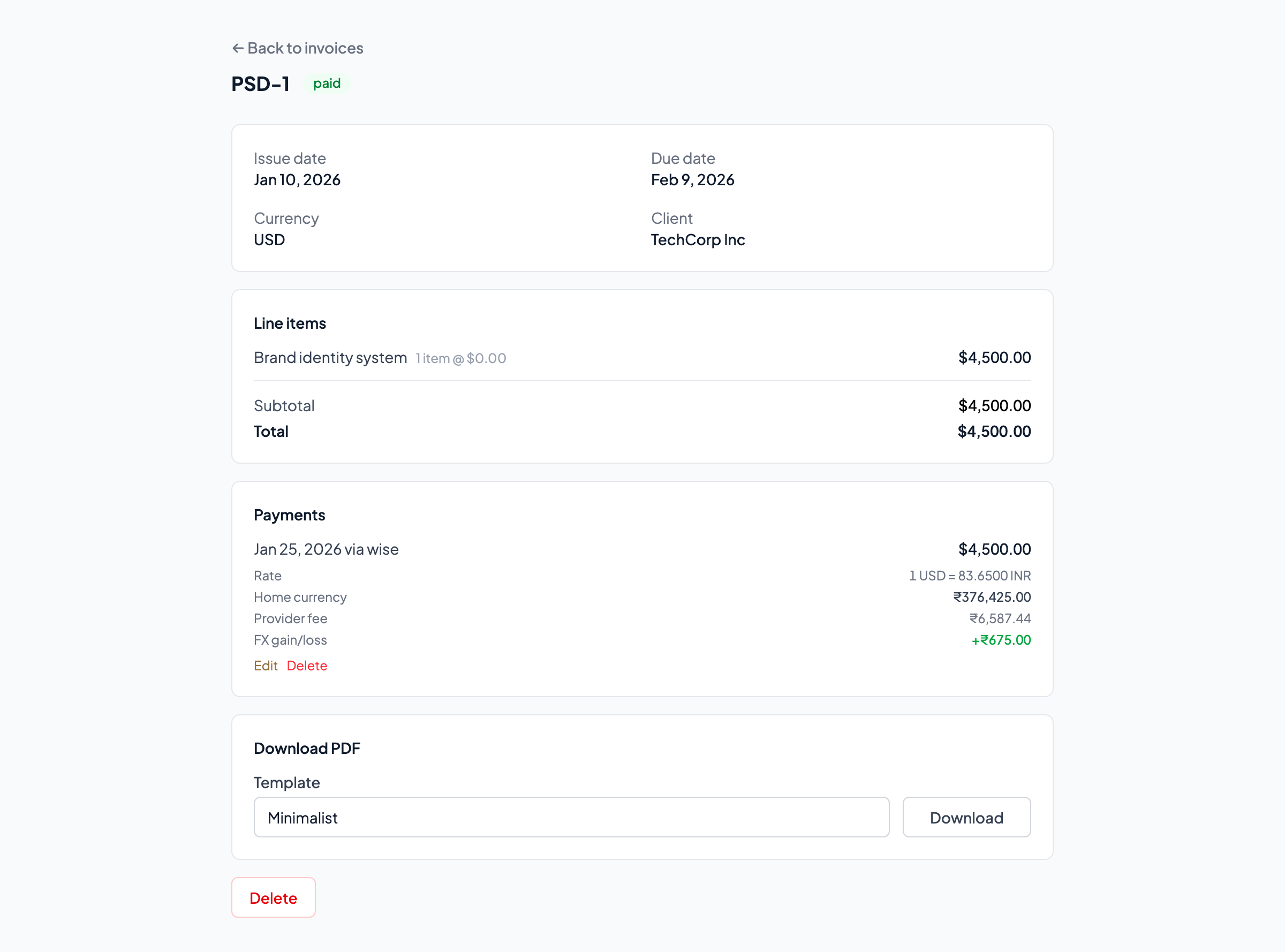
Click into any invoice to see the full picture: issue date, due date, client, currency, line items with totals, and payment history. From here you can download the PDF, send it to the client, record a payment, or manage the invoice status.
Invoice statuses
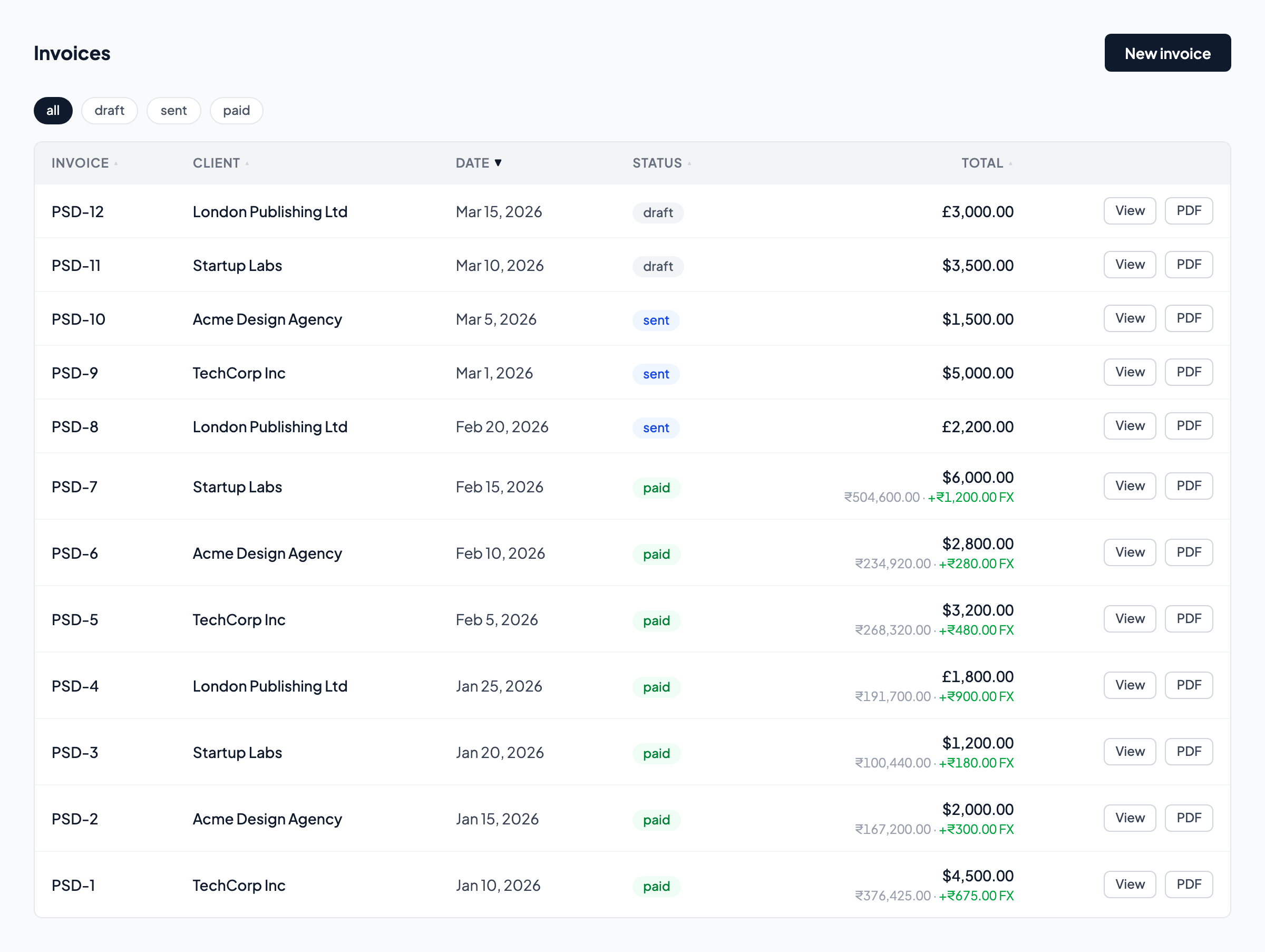
Every invoice moves through a simple lifecycle:
- Draft — Work in progress. Edit freely. Not yet sent to the client.
- Sent — Delivered to the client. Locked for editing. Clock starts on payment terms.
- Paid — Payment recorded. Shows the amount received, provider used, and FX impact.
- Overdue — Automatically flagged when past the due date and still unpaid.
- Void — Cancelled. Kept on record rather than deleted, which is better for your accounting trail.
Sending an invoice
From the invoice detail page, click Send invoice. Fieldfare emails the PDF directly to your client. The status changes to "sent" and the due date countdown begins. Need to resend? Hit Resend from the same page.
If you send invoices through your own email or another tool, click Mark as sent manually instead. This updates the status without sending an email.
Other actions
Void an invoice keeps it in your records but marks it as cancelled. This is better than deleting for audit purposes: your invoice numbering stays sequential and you have a record of what happened.
Delete removes the invoice entirely. Use this for test invoices or genuine mistakes.
Draft invoices can be edited freely. Once an invoice is sent, it's locked. If you need to make changes, void the original and create a new one.
Invoice numbering
Invoices are numbered automatically. The format uses a prefix (your business code or initials, configurable in Settings) followed by an auto-incrementing number. Your next invoice is always one higher than your last. Simple, sequential, professional.